
Claude Can Clean Up Your Messy Spreadsheet Now. Here Is the Safe Way to Let It.
The Rundown AI's October 9 training guide uses the Claude add in inside Excel to clean a messy sales export, fix a wrong total, and build a report that updates itself, with checks at every step so the numbers stay honest.
Start with a copy, and let Claude audit before it touches anything
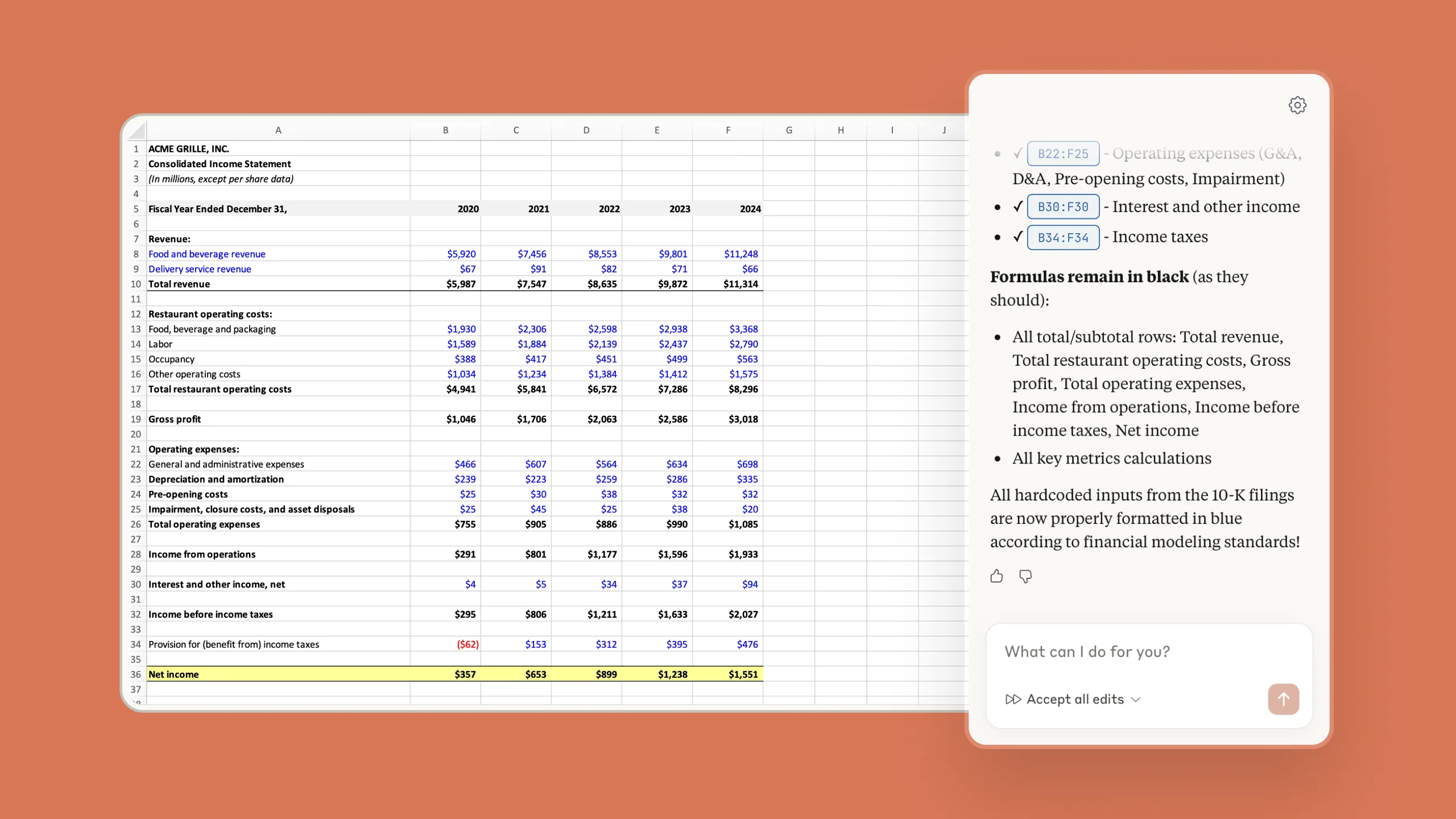
Every business has one: the spreadsheet that started clean and slowly turned into a swamp of duplicate rows, missing details, and a total nobody fully trusts. The Rundown AI's October 9 training session tackles exactly that file, using the official Claude add in for Excel to clean a messy sales export and turn it into a monthly report.
The guide's example is a sales export, but the same mess lives everywhere: booking sheets, inventory counts, content calendars, and client lists all drift the same way when more than one person touches them.
The workflow starts the way any careful editor would. Install the add in, open a copy of the workbook, and tell Claude what each row means and which orders count. Before changing a single cell, ask it to hunt for duplicate rows, missing details, and formula mistakes, so the problems get listed before they get fixed.
The five steps, in order
Here is the sequence the guide teaches, in the order it teaches it:
- Install the official Claude add in and open a copy of your workbook, keeping the original untouched
- Explain what each row means and which orders count, then ask Claude to find duplicates, gaps, and formula errors first
- Approve every fix on a separate sheet and ask for a written record of each change, including any rows left out
- Build the monthly report with formulas and a chart, then check the order count, refunds, and sales total against the source rows
- Add one test order to confirm the report and chart update, remove it, and verify the original totals return before saving
The rule transfers to every AI task we run
The pro tip from the guide deserves to be framed on a wall: a spreadsheet can show a wrong total without showing an error. Ask Claude to explain which rows it counted, then check a few yourself.
Working on a copy sounds paranoid until the first time an AI confidently fixes the wrong column. The separate approval sheet is the undo button with a paper trail, and it turns a risky automation into a review task any careful person can run.
Nothing in this workflow is really about Excel. It is a template for handing any messy job to AI without losing the thread: work on a copy, audit before editing, approve changes on a separate layer, keep a record, and test that the system responds the way you expect before you trust it. That is exactly how we treat AI inside client work at this studio, from sorting footage to drafting copy. The tool is fast. The discipline around the tool is what makes the speed safe to use.
See our business websites and growth work
Sources and further reading
Sources were checked for this article. Tool features, prices and availability can change. Product claims are attributed to their publishers.